Many teams start with AGYNAMIX Invoicer in standalone mode, and for a while that works perfectly well. One machine, one installation, no network setup, no shared host to think about. The question of client-server usually comes later, when several people need to work with the same data.
That is also the moment when migrations get messy if they are rushed. A machine gets promoted to server too quickly. A future client is connected even though it still contains important local data. Or the whole change is treated like a simple mode switch, even though it is really a controlled move of data, settings, credentials, and responsibility.
This guide walks through a practical migration path: one that is a little calmer and usually saves time afterward.
The basic model behind the migration
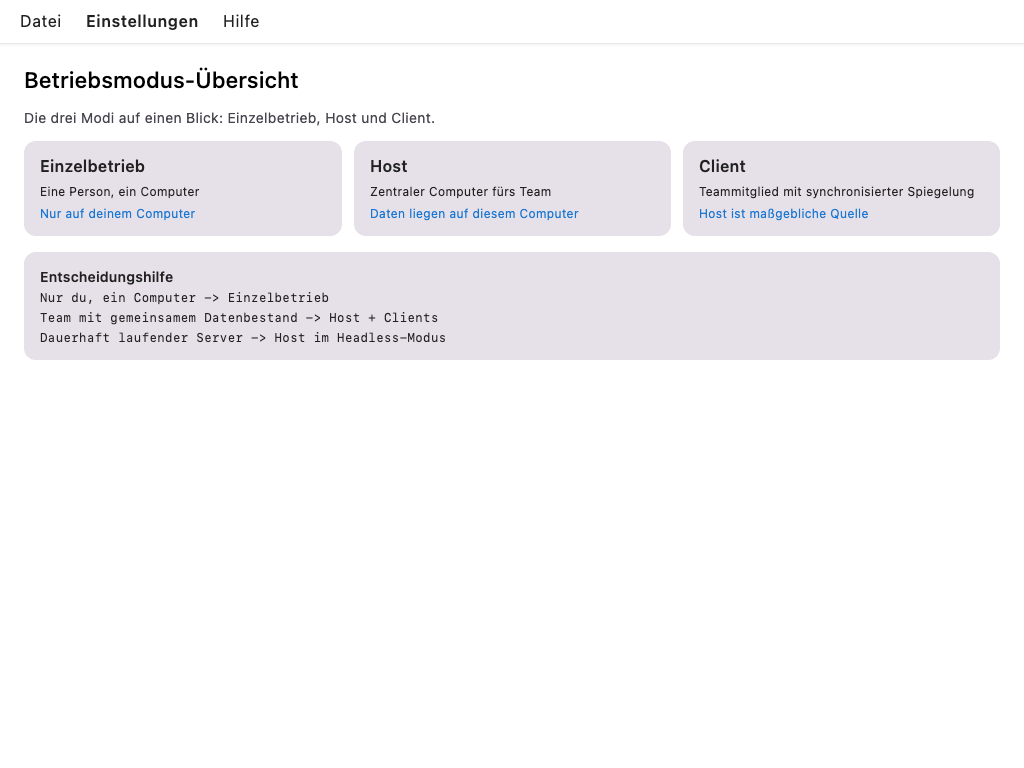
Client-server does not just mean “more computers”. It means one installation becomes the host and the others become clients.
The host carries the authoritative data set. Clients work with a synchronized local copy.
That is the single most important idea in the migration:
In client-server mode, the host is the authoritative system.
Once that is clear, the rest of the process becomes much easier to reason about.
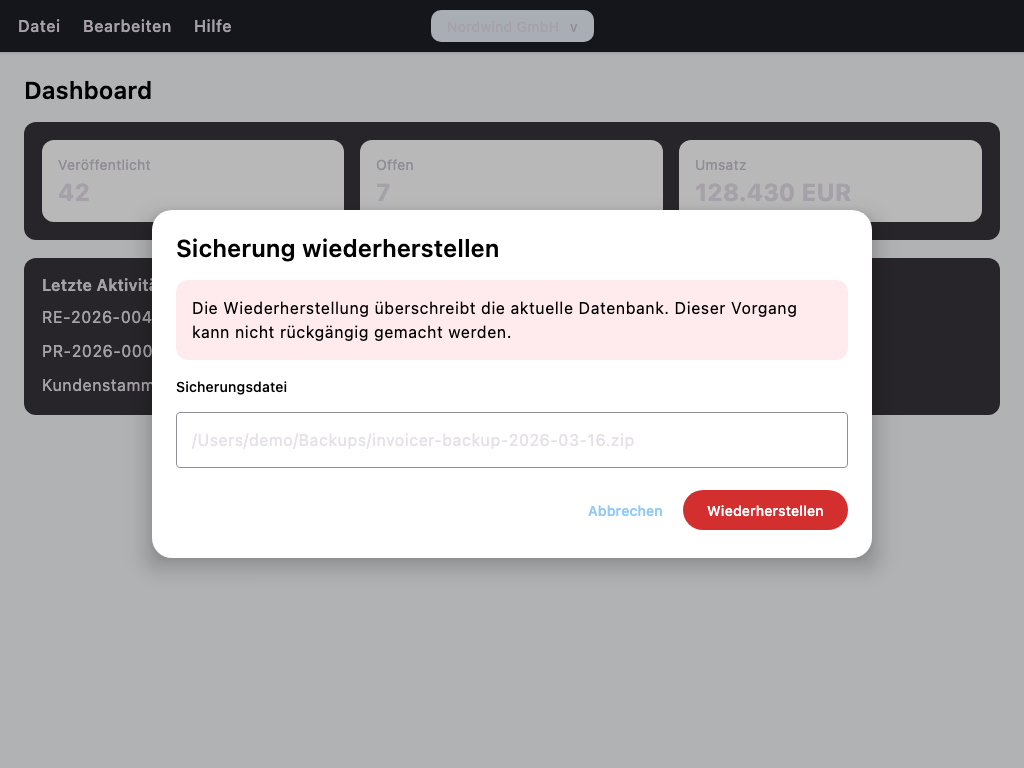
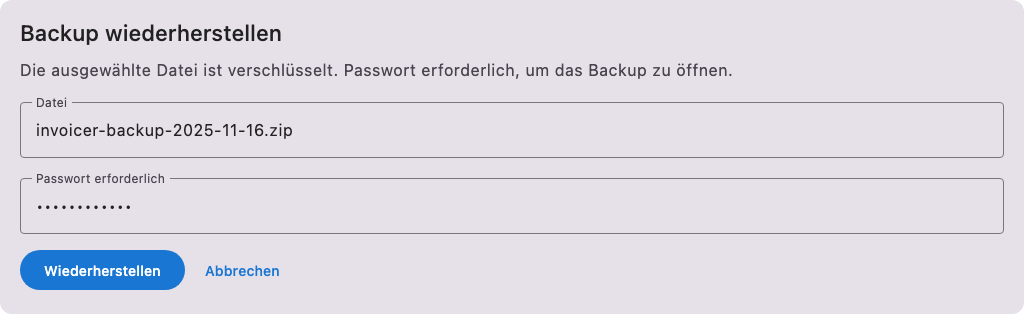
Step 1: Restore your backup on the machine that will become the host
The safest path is usually not to turn your current workstation into the host on the spot. A cleaner approach is to decide which machine should actually act as the future host, and move the current standalone data there first.
In practice:
- Create a backup on the current standalone machine.
- Copy that backup to the future host machine.
- Restore it there while the installation is still running in Standalone mode.
That extra step is worth it. It separates the data move from the role change.
Step 2: Check the host-specific settings before enabling server mode
After the restore, the business data is there, but the machine still is not automatically ready for server duty. Two areas are worth checking before you switch it to Host.
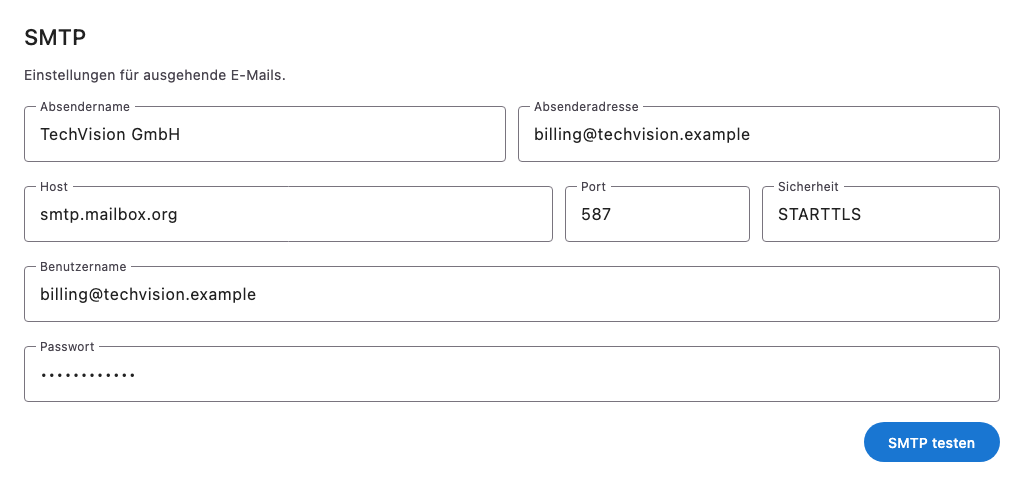
Review email settings and recreate passwords if needed
Email credentials should not be treated as a background detail here. In Invoicer, these secrets are protected in a machine-bound way, so after a restore on another computer you should verify them explicitly.
The safe path is simple:
- open the email settings,
- review SMTP and IMAP configuration,
- re-enter passwords if needed,
- test sending or receiving.
That way you do not end up with a host that technically runs, but already has broken email configuration at its core.
Verify the archive root
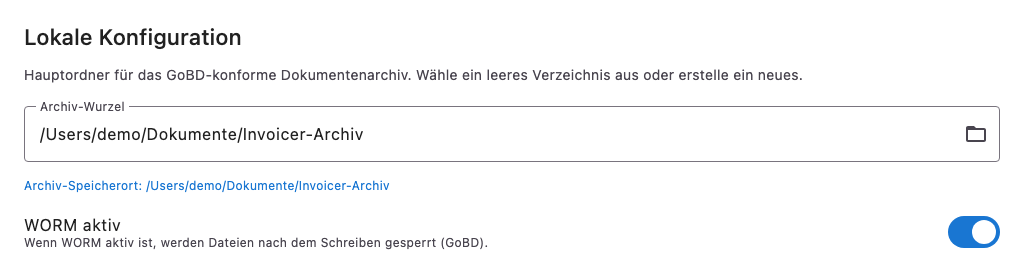
The archive path is another common trap. A path that worked on the old machine may be wrong on the new one, especially if it used a local user directory, a different drive, or a mounted network location.
Before switching to host mode, check:
- does the archive path exist on the new machine,
- is it reachable,
- is it really the location you want to use going forward.
Fixing it now is much better than discovering the problem after the server is already live.
Step 3: Switch the future server to Host mode
Once the restored installation looks right, you can switch it from Standalone to Host.
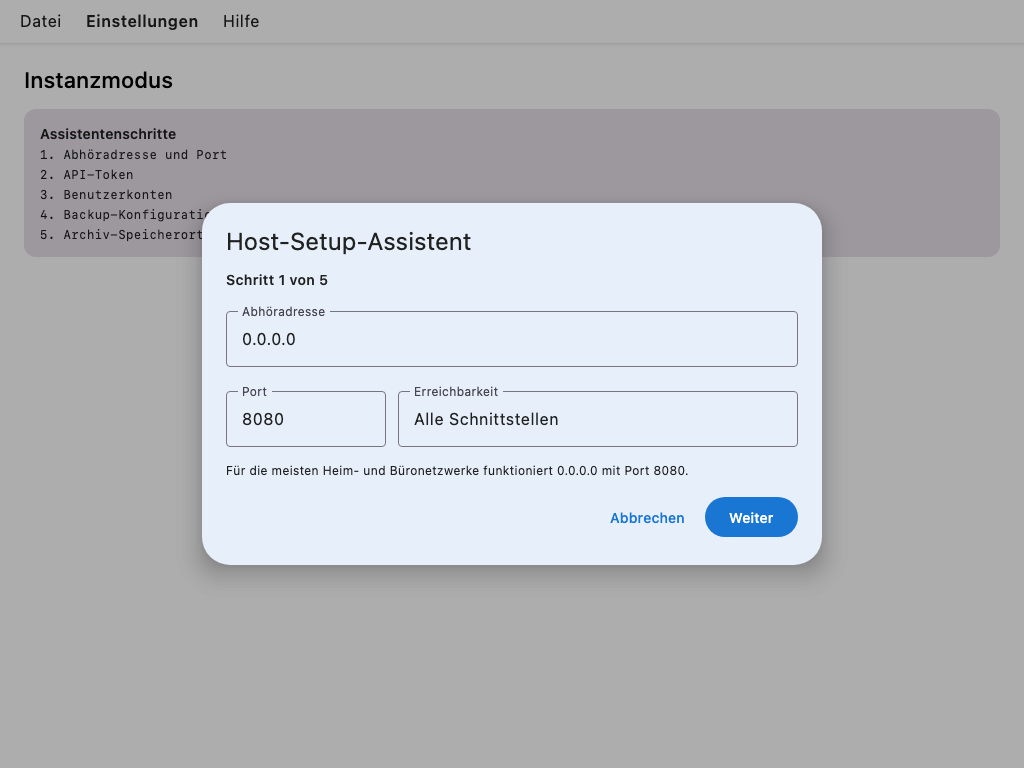
The wizard asks for a few settings that are worth understanding.
Bind host or listen address
This decides where the host listens for incoming connections. If the setting is too restrictive, the server may look fine locally while every client behaves as if it does not exist.
HTTPS and HTTP ports
The current product behavior is HTTPS first. If someone enters only a host name or IP address on a client, Invoicer normally assumes HTTPS on port 8443.
HTTP is still available as a fallback. That is mainly useful if you intentionally need to test or run without HTTPS.
In practice:
- normal case:
https://host:8443 - fallback:
http://host:8080 - custom ports must be entered explicitly on the client.
This matters because older descriptions often sound more generic. The current application is not generic here: without a scheme, it expects HTTPS.
API token
The API token is what allows a client to join the host. If the token is wrong, users often assume the network is broken, when in reality the host is reachable but access is not valid.
User accounts with passwords
Clients do not just point to a host and start syncing. They have to log in first. So the user accounts that should be used for onboarding need passwords on the host already.
Step 4: From this point on, the host is authoritative
Once Host mode is active, the operating model changes.
- The host holds the authoritative data.
- Clients receive their data from the host.
- A problem on the host is no longer local to one machine.
This sounds obvious, but it is the part people most often underestimate. The cleaner your mental model is here, the smoother the rest of the rollout usually goes.
Step 5: Turn another machine into a client
On the next machine, the goal is not to maintain a second independent data set. It is to join the existing system.
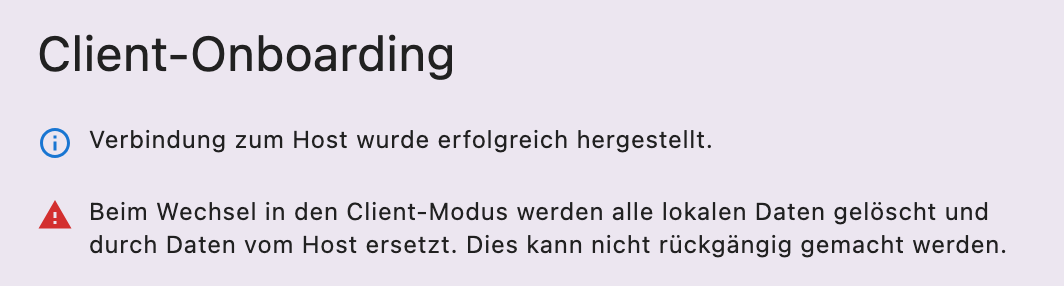
Switch that installation to Client mode. And pay close attention to the main warning during onboarding:
Local data on that machine will be deleted and replaced with data from the host.
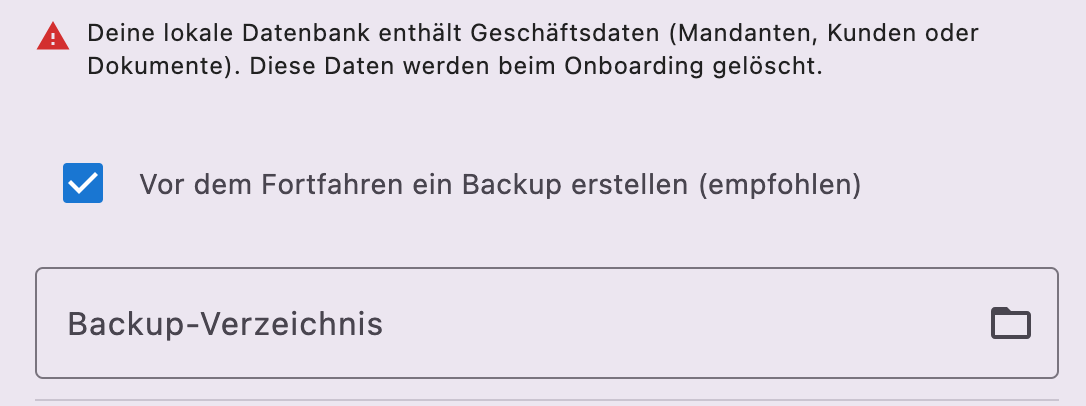
That is not phrased dramatically for effect. It is exactly what will happen. If the machine still contains valuable local data, create a backup first.
Step 6: Complete client onboarding carefully
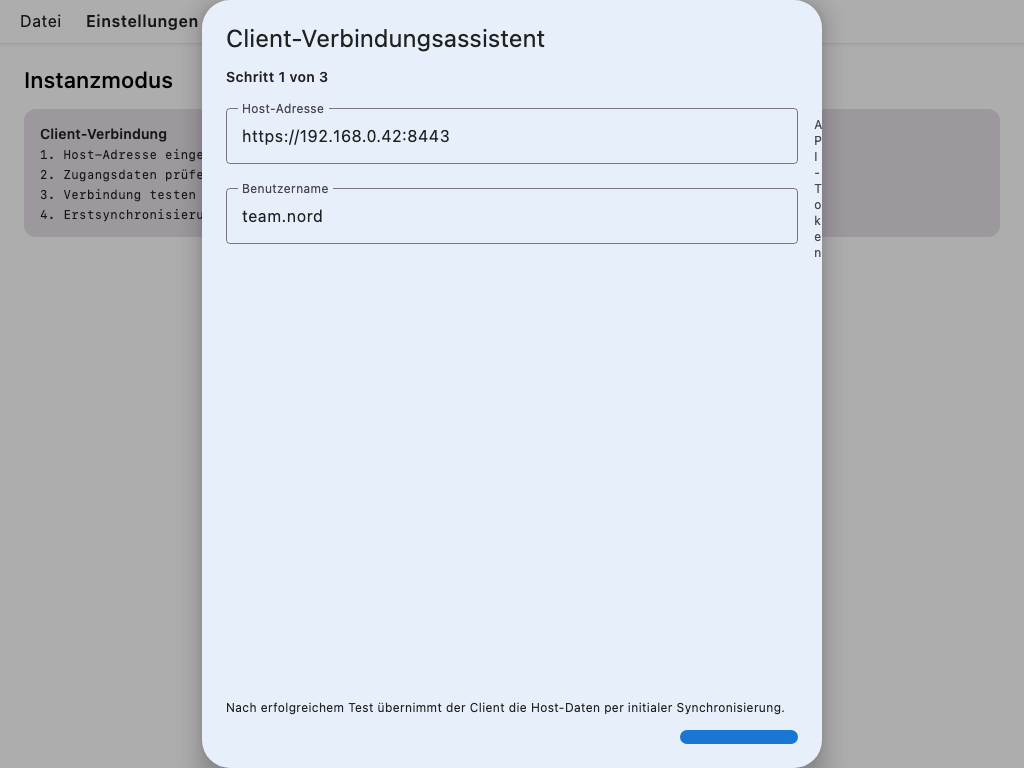
Three things matter most during client onboarding.
Host address
If you enter only a host name or IP, Invoicer usually completes it as HTTPS with port 8443.
Examples:
192.168.0.42invoicer.company.local:9443http://192.168.0.42
If you really want HTTP, you must enter http:// explicitly. Otherwise the client will keep trying HTTPS.
API token
The token must belong to the target host. If it does not, the failure can easily look like a general connectivity problem.
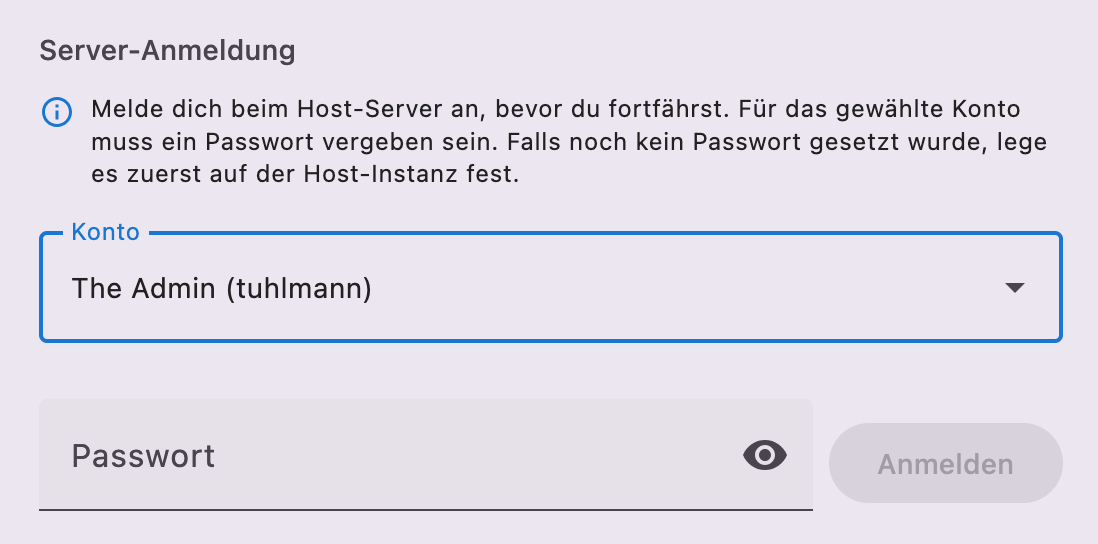
Host login
After the connection test, the client has to log in to the host before the first sync can start. If local business data is still present, the wizard offers a backup first. That is usually a good moment to stop and use it.
Step 7: What changes in day-to-day operation
After the switch, the technical migration may be finished, but the operating model is different.
- The host should stay reachable.
- Firewall and port settings become part of normal operations.
- Host-side users and passwords matter for everyone.
- Host issues affect the whole setup, not just one workstation.
That does not have to be complicated. It just means the host now has a real infrastructure role.
Common issues and the usual fixes
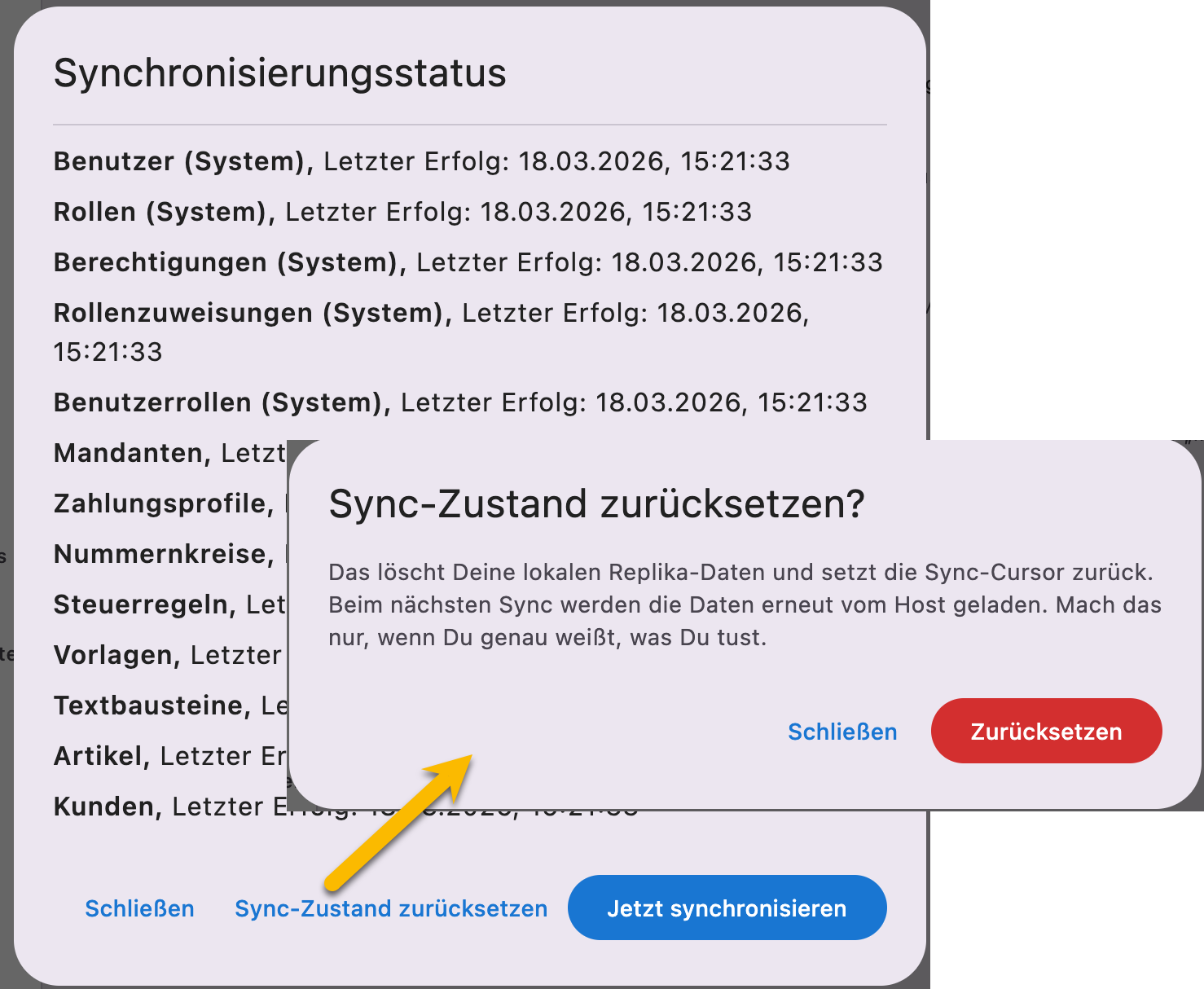
Sync is stuck or looks wrong
Reset Sync is often the right fix. It clears the local client replica and rebuilds it from the host.
Host login no longer works
Log out, log back in, then trigger sync again. Expired or missing sessions are a normal failure mode.
You want to restart onboarding from scratch
The clean path is usually: switch back to Standalone, remove the host connection, then join again as Client.
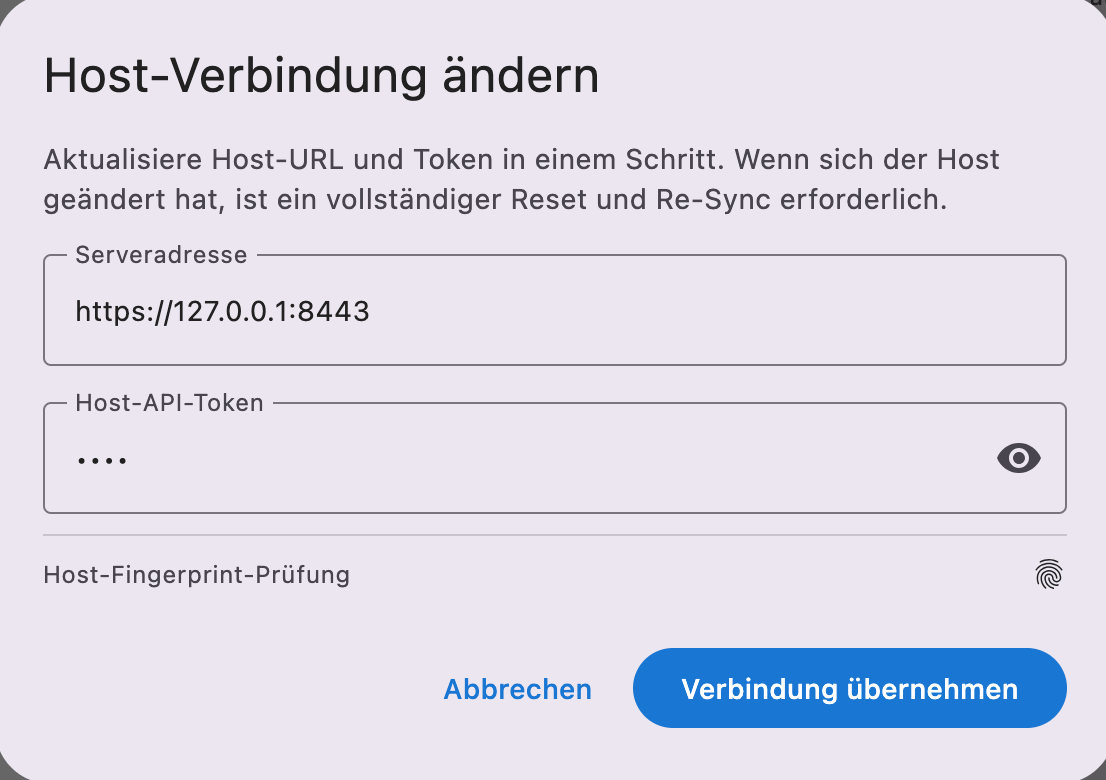
If the client just needs to point to a different host, use Change host connection. That triggers a full reset and re-sync of the local replica.
No connection at all
Start with the simple checks:
- is the host running,
- is the firewall open,
- do the HTTP and HTTPS ports match the actual setup,
- is the client still trying HTTPS while you intended HTTP,
- is the API token correct.
Token problems and network problems often look similar at first glance.
Conclusion
The move from standalone to client-server is very manageable if you split it into the right phases. First move the data to the future host. Then review the host-specific settings. Only after that should you enable server mode and attach further machines as clients.
That approach is less disruptive and usually much less painful.
If you want to see the English writing brief that describes the tone behind practical guides like this one, you can find the prompt file here.
If you want to explore AGYNAMIX Invoicer in practice, you can find the application here: AGYNAMIX Invoicer.
This article is a technical migration guide for changing an installation setup. It is not a substitute for individual network, security, legal, or tax advice.